
Subtotal $0.00

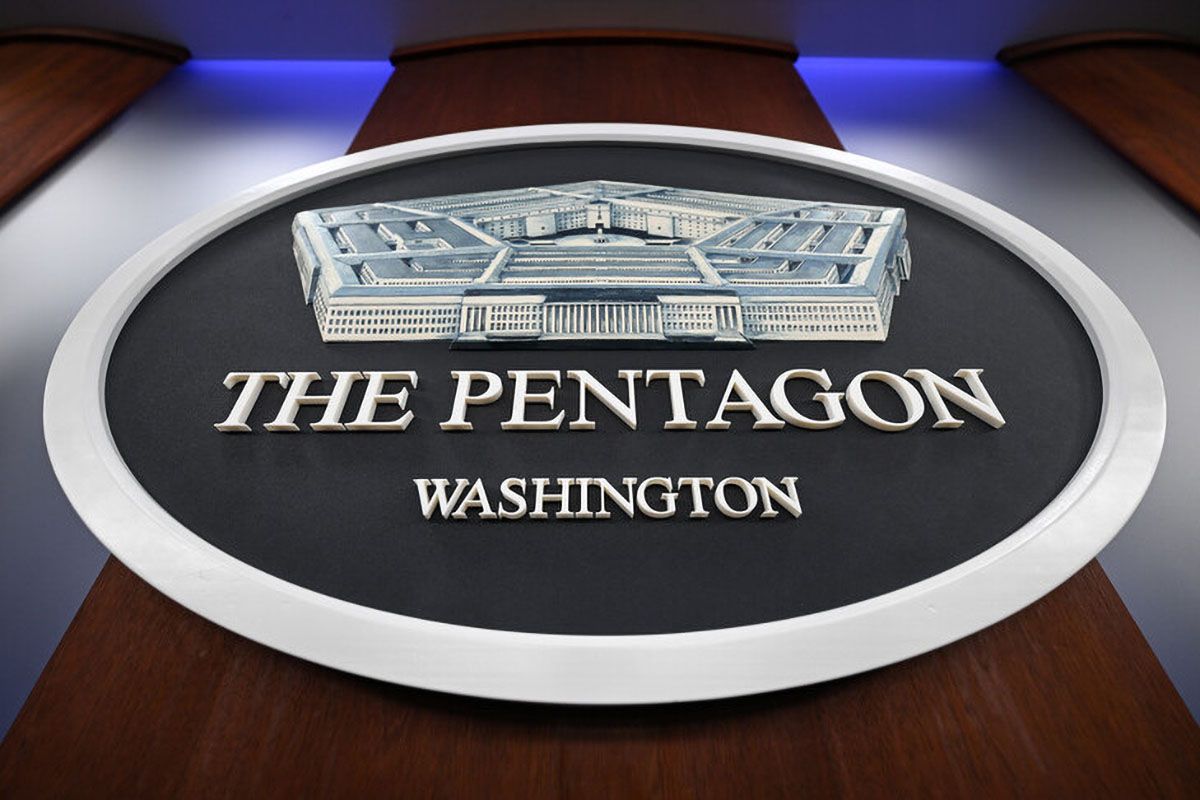
Jakarta (ANTARA) – Kementerian Pertahanan Amerika Serikat, atau Pentagon, telah menambahkan perusahaan e-commerce Alibaba dan penyedia layanan internet Baidu ke dalam daftar perusahaan yang dinilai memiliki hubungan dengan militer China.
Menurut laporan Engadget pada Selasa (9/6) waktu setempat, pencantuman Alibaba dan Baidu dalam daftar ini tidak berarti pemerintah Amerika Serikat segera menerapkan sanksi terhadap kedua perusahaan.
Akan tetapi, status tersebut menghalangi Pentagon untuk menandatangani kontrak langsung dengan perusahaan itu atau menggunakan produk dan layanan mereka lewat pihak ketiga.
Kebijakan ini dapat berdampak negatif pada peluang bisnis Alibaba dan Baidu, karena sejumlah kontraktor yang bekerja dengan Pentagon mungkin memilih untuk menghentikan penggunaan produk atau layanan mereka.
Selain Alibaba dan Baidu, beberapa perusahaan semikonduktor dari China juga tercantum dalam daftar Pentagon, seperti produsen chip memori ChangXin Memory Technologies (CXMT) dan Yangtze Memory Technologies Co. (YMTC).
Pentagon sebenarnya telah memperbarui daftar tersebut pada bulan Februari lalu. Namun, daftar itu kemudian ditarik menjelang kunjungan Presiden Amerika Serikat Donald Trump ke Beijing pada bulan Mei untuk bertemu dengan Presiden China Xi Jinping.
Pada saat yang sama, dua senator Amerika Serikat dari Partai Republik dan Partai Demokrat dilaporkan mendorong pemerintahan Trump untuk memperketat pembatasan terhadap industri semikonduktor yang berhubungan dengan perusahaan asal China.
Mereka mengusulkan agar anak perusahaan luar negeri dari perusahaan China tidak diperbolehkan memesan chip khusus dari produsen semikonduktor seperti Taiwan Semiconductor Manufacturing Company (TSMC).
Taiwan juga dikabarkan tengah mempertimbangkan kebijakan yang sejalan dengan pembatasan ekspor teknologi yang diterapkan oleh Amerika Serikat.
Pemerintah Taiwan dilaporkan sedang meninjau aturan pembatasan penjualan chip kecerdasan buatan (AI) kepada semua pelanggan dari China.
Jika kebijakan tersebut diimplementasikan, perusahaan-perusahaan China akan mengalami kesulitan untuk mendapatkan chip AI yang berkinerja tinggi yang digunakan dalam pengembangan teknologi kecerdasan buatan.

Comments are closed